
voici une astuce pour rooté le lg optimus l7 plus deux trois optimisations 
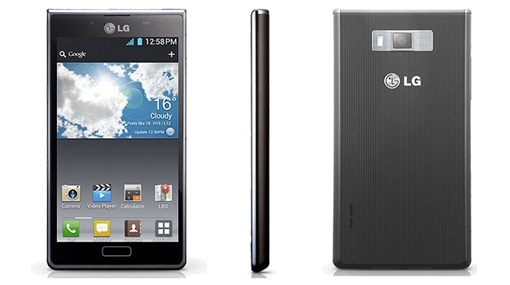
Lg optimus l7 p700 Rooter,rom custom,bootloader
1.mise a jour et rooter (V10i )
En 1er télécharger ce fichier
http://www.mediafire.com/?16ay7ituwwhnib3
Télécharger en suite la dernière version du firmware :
http://lg-phone-firmware.com/index.php?id_mod=13
Télécharger le fichier http://albafile.com/w9696umdwhtf/pour_nous__l7_.rar.html
(Archive en 4 parties, a réunir avec 7Zip pour avoir un seul fichier qui se nomme system.img.ext4 qui faut ensuite copier sur votre disque C)
logiciel 7zip pour le pc
lancer le 1er fichier
et cliquer là

sélectionner 3GQCT et EMERGENCY et parcourir les fichiers pour charger votre V10I (ou autre)
NE FAITES PLUS RIEN. Ne cliquez pas sur 'Launch Software Update'. (Laissez ouvert comme ça)
Trouvez ensuite votre dossier LGMOBILEAX (Commencez par cocher l'option 'Afficher les fichiers et dossiers cachés' dans fichier/option des dossiers etc)
Chez moi le dossier était dans Disque:C/ProgramData/LGMOBILEAX (Laissez ce dossier ouvert)
vous avez logiquement, votre system.img.ext4 copié sur votre disque C, et votre logiciel de flash ouvert prêt a être utilisé
Ensuite, vous éteignez votre portable, puis vous le passez en mode EMERGENCY
(Une fois éteint touche volume UP + Mise sous tension) une petite vibration et hop écran jaune avec écrit 'EMERGENCY'
ETAPE LA PLUS IMPORTANTE (a lire avant la manip) :
Vous allez brancher votre portable, puis cliquez sur 'LAUNCH SOFTWARE UPDATE' (gardez le dossier LGMOBILEAX et votre disque C avec votre system.img.ext4 (Image modifié) sous la main)
Donc au moment ou vous allez cliquez sur LAUNCH SOFTWARE UPDATE, le log commence son boulot, au même moment dans le dossier LGMOBILEAX un dossier 'phone' apparaît entrez dedans, vous devriez voir un nouveau fichier nommé system.img.ext4 apparaître aussi, qui grossi de plus en plus (Rafraîchissez le dossier) une fois que ce fichier a atteint sa taille maxi, c'est a dire 430 mo (soit affiché 430 000 ko dans le fenêtre windows) vous la supprimez et vous copier votre system.img.ext4 (ou couper coller)modifié que vous avez copié sur votre disque C juste avant. On supprime l'ancienne, on met la nouvelle. Et voila c'est fini.
En attendant le logiciel de flash continue son boulot, il affiche des erreurs mais c'est pas grave. il affiche plein de 'NOT FOUND' mais c'est pas important.
Vous attendez la fin, votre portable démarre, le logiciel écrit 'FINISHED' (le logiciel plante a la fin chez moi, mais c'est normal)
vous avez un portable rooté sur la v10i
PS : Il est possible que votre clavier par défaut LG crash a l'ouverture du téléphone après le root et soit inutilisable. Je n'utilise pas ce clavier, j'utilise SwiftKey 3 donc j'ai pas eu ce problème.
Donc en 1er et AVANT TOUTE MANIPULATION DE VOTRE TELEPHONE telecharger SwiftKey 3 ou autre clavier
voila logiquement en même pas 1h tout et fait
2.Comme beaucoup de personnes recherche comment procédé pour faire
un reset complet sur le lg optimus p700
je ne parle pas de hard reset sinon c'est ici ---> hard-reset.html
1- arrêter votre mobile
2- tenir les touche suivante enfoncé et dans cette ordre
(volume+)+(volume-) + (touche centre en bas) + power
3- le mobile vas vibré tout lâché
4- attendre de une a deux secondes et re cliquer sur power rapidement
un robot doit apparaître
5- re cliquer sur power pendent 1 a 2 secondes
une liste en bleu vas apparaître
avec écrit:
Android System Recovery (3e)
Android system recovery utility
--- Reboot
--- Apply Update
--- Wipe Data/Facory reset
--- Wipe cache partition
6- allez sur Wipe Data/Facory reset et supprimer le fichier a l'interieur
nettoyez aussi Wipe cache partition
7-faire reboot avec la ligne correspondante

3.Pour liée les applications sur la carte sd
Link2SD déplace les fichiers apk, dalvik-cache (.dex) et lib (.so) vers la carte SD.
https://play.google.com/store/search?q=link2sd
Link2SD ne peut être mis en œuvre que sur un téléphone avec les droits "ROOT"
formater votre carte sd avec : http://www.partitionwizard.com/
créé une 1ere partition PRIMAIRE FAT32 bien grosse pour pouvoir avoir du stockage
créé une 2eme partition PRIMAIRE EXT2 de 1.37 Go
la sd dans le mobile lancé Link2sd choisir ext2
liée vos applications

4.Pour remplacer les applications d'origine
télécharger cette application : play.google.com/store/apps/
comme le téléphone et root, après désinstaller la galerie + photo origine
l'application fait galerie,photo et caméra (+camera 360°)
il faut faire pareil pour le lecteur audio vidéo
télécharger PlayerPro Music Player
puis désinstaller l'original (encore de la place en + dans la room )
pareil avec le navigateur internet d'origine
télécharger Dolphin Browser
idem pour la calculatrice
télécharger RealCalc Scientific Calculator
puis désinstaller l'original (encore de la place )
idem pour le calendrier d'origine
télécharger Jorte Calendar
puis désinstaller le calendrier d'origine
logiquement avec ça vous gagnez pas mal de place
la room sera bien plus légère
Comme application superbe aussi et utile
il y a l'application WiFi Manager
@++
En 1er télécharger ce fichier
http://www.mediafire.com/?16ay7ituwwhnib3
Télécharger en suite la dernière version du firmware :
http://lg-phone-firmware.com/index.php?id_mod=13
Télécharger le fichier http://albafile.com/w9696umdwhtf/pour_nous__l7_.rar.html
(Archive en 4 parties, a réunir avec 7Zip pour avoir un seul fichier qui se nomme system.img.ext4 qui faut ensuite copier sur votre disque C)
logiciel 7zip pour le pc
lancer le 1er fichier
et cliquer là
sélectionner 3GQCT et EMERGENCY et parcourir les fichiers pour charger votre V10I (ou autre)
NE FAITES PLUS RIEN. Ne cliquez pas sur 'Launch Software Update'. (Laissez ouvert comme ça)
Trouvez ensuite votre dossier LGMOBILEAX (Commencez par cocher l'option 'Afficher les fichiers et dossiers cachés' dans fichier/option des dossiers etc)
Chez moi le dossier était dans Disque:C/ProgramData/LGMOBILEAX (Laissez ce dossier ouvert)
vous avez logiquement, votre system.img.ext4 copié sur votre disque C, et votre logiciel de flash ouvert prêt a être utilisé
Ensuite, vous éteignez votre portable, puis vous le passez en mode EMERGENCY
(Une fois éteint touche volume UP + Mise sous tension) une petite vibration et hop écran jaune avec écrit 'EMERGENCY'
ETAPE LA PLUS IMPORTANTE (a lire avant la manip) :
Vous allez brancher votre portable, puis cliquez sur 'LAUNCH SOFTWARE UPDATE' (gardez le dossier LGMOBILEAX et votre disque C avec votre system.img.ext4 (Image modifié) sous la main)
Donc au moment ou vous allez cliquez sur LAUNCH SOFTWARE UPDATE, le log commence son boulot, au même moment dans le dossier LGMOBILEAX un dossier 'phone' apparaît entrez dedans, vous devriez voir un nouveau fichier nommé system.img.ext4 apparaître aussi, qui grossi de plus en plus (Rafraîchissez le dossier) une fois que ce fichier a atteint sa taille maxi, c'est a dire 430 mo (soit affiché 430 000 ko dans le fenêtre windows) vous la supprimez et vous copier votre system.img.ext4 (ou couper coller)modifié que vous avez copié sur votre disque C juste avant. On supprime l'ancienne, on met la nouvelle. Et voila c'est fini.
En attendant le logiciel de flash continue son boulot, il affiche des erreurs mais c'est pas grave. il affiche plein de 'NOT FOUND' mais c'est pas important.
Vous attendez la fin, votre portable démarre, le logiciel écrit 'FINISHED' (le logiciel plante a la fin chez moi, mais c'est normal)
vous avez un portable rooté sur la v10i
PS : Il est possible que votre clavier par défaut LG crash a l'ouverture du téléphone après le root et soit inutilisable. Je n'utilise pas ce clavier, j'utilise SwiftKey 3 donc j'ai pas eu ce problème.
Donc en 1er et AVANT TOUTE MANIPULATION DE VOTRE TELEPHONE telecharger SwiftKey 3 ou autre clavier
voila logiquement en même pas 1h tout et fait
2.Comme beaucoup de personnes recherche comment procédé pour faire
un reset complet sur le lg optimus p700
je ne parle pas de hard reset sinon c'est ici ---> hard-reset.html
1- arrêter votre mobile
2- tenir les touche suivante enfoncé et dans cette ordre
(volume+)+(volume-) + (touche centre en bas) + power
3- le mobile vas vibré tout lâché
4- attendre de une a deux secondes et re cliquer sur power rapidement
un robot doit apparaître
5- re cliquer sur power pendent 1 a 2 secondes
une liste en bleu vas apparaître
avec écrit:
Android System Recovery (3e)
Android system recovery utility
--- Reboot
--- Apply Update
--- Wipe Data/Facory reset
--- Wipe cache partition
6- allez sur Wipe Data/Facory reset et supprimer le fichier a l'interieur
nettoyez aussi Wipe cache partition
7-faire reboot avec la ligne correspondante
3.Pour liée les applications sur la carte sd
Link2SD déplace les fichiers apk, dalvik-cache (.dex) et lib (.so) vers la carte SD.
https://play.google.com/store/search?q=link2sd
Link2SD ne peut être mis en œuvre que sur un téléphone avec les droits "ROOT"
formater votre carte sd avec : http://www.partitionwizard.com/
créé une 1ere partition PRIMAIRE FAT32 bien grosse pour pouvoir avoir du stockage
créé une 2eme partition PRIMAIRE EXT2 de 1.37 Go
la sd dans le mobile lancé Link2sd choisir ext2
liée vos applications
4.Pour remplacer les applications d'origine
télécharger cette application : play.google.com/store/apps/
comme le téléphone et root, après désinstaller la galerie + photo origine
l'application fait galerie,photo et caméra (+camera 360°)
il faut faire pareil pour le lecteur audio vidéo
télécharger PlayerPro Music Player
puis désinstaller l'original (encore de la place en + dans la room
)pareil avec le navigateur internet d'origine
télécharger Dolphin Browser
idem pour la calculatrice
télécharger RealCalc Scientific Calculator
puis désinstaller l'original (encore de la place
)idem pour le calendrier d'origine
télécharger Jorte Calendar
puis désinstaller le calendrier d'origine
logiquement avec ça vous gagnez pas mal de place
la room sera bien plus légère
Comme application superbe aussi et utile
il y a l'application WiFi Manager
@++

![360081[1]](http://astucesinfo.com/wp-content/uploads/2013/05/3600811.jpg)
![How To Root ANY Samsung Galaxy S3 4.1.2 & 4.1.1 [
Verizon/AT&T/Sprint/T-mobile/I9300 Version]](https://lh3.googleusercontent.com/blogger_img_proxy/AEn0k_ujLzvSL-LwMc0SsB73yktrzlD2jluwMBf0YQk73DdJOhAeVH9VHRK-qbKKdYEKU_tUm7hag3vuELS6lVVUu_F7VxBv2axZInGGTGslpz3OcLWxPnsujoCfW9uuWG6VC6bSSmXXhAvzYG51Ug=s0-d)


![Firmware Apple Official Firmwares [All in One] 6.1.2 Download](https://lh3.googleusercontent.com/blogger_img_proxy/AEn0k_sbhuEpD-k53TDl_sfDRn6ps7_ka9gNjcK0_RMSIJUE189HylHdcfm-bfmgl88EwTEgPzwrRah96P_KVsHuCKZ_KbdTm44rqdW6Cms=s0-d)


![NAVIGON MobileNavigator Europe IPA [iPhone/iPad Download]](https://lh3.googleusercontent.com/blogger_img_proxy/AEn0k_tounsBTRb6WwdTw8eB_-rD5SFXhM8-U4XuN5pjpFjT8hveRKhrQ2GXD_OfnTAcI7u78VA3Y27-CAKZfrCJ-1bQ-b9sJI6u1T16A-bHX41kMtdVZLf5dcO9UVr61vouBP_ZBg=w72-h72-p-k-no-nu)

